Good for spare sheets
Pick the unused slot on a common 1, 2, 4, 6 or 8 label sheet layout, then export a new PDF positioned for that part of the sheet.
 PDF Label Mover
Seller label sheet tool
PDF Label Mover
Seller label sheet tool
Seller tool
Move an eBay, marketplace or courier postage label PDF onto a spare position on an A4 or Letter label sheet before you print. It is useful when one or two labels on a sheet have already been used.
Your PDF is processed in the browser and is not uploaded to Clear Calculators.
Check printer scaling before using label sheets: most labels need 100% scale, not fit to page.
Some sellers print one shipping label on an A4 or Letter sheet, then have unused label positions left over. This tool lets you place the next PDF label onto one of those unused positions so you can avoid wasting the rest of the sheet.
It works with common marketplace and courier label PDFs, including eBay, Royal Mail-style, selling-platform and fulfilment labels. Always check the preview before printing.
Pick the unused slot on a common 1, 2, 4, 6 or 8 label sheet layout, then export a new PDF positioned for that part of the sheet.
The PDF stays in your browser while you position the label and create the new sheet.
Printer drivers can resize PDFs. Use actual size or 100% scale when the label sheet instructions require it.
Upload the label PDF, choose the sheet layout that matches your label paper, then pick the unused label position. The preview shows the label sheet edges so you can check the selected slot before downloading the adjusted PDF.
If the PDF contains a full A4 page with the postage label in one corner, use the source crop setting. Auto detect tries to cut out the label area first, and the eBay A4 label option is there for common marketplace postage PDFs.
Read the step-by-step guide to printing eBay labels on unused A4 label sheets.
Move an eBay or courier label onto a spare A4 position, or reuse the remaining spaces on a partly used label sheet.
Useful when the first label on a 2 x 2 sheet has already been used and the next PDF needs to go into slot 2, 3 or 4.
Choose the label position that is still available, then check the preview before using the real sheet.
Move marketplace, courier and postage label PDFs onto a different part of the page before printing.
Avoid throwing away partly used sheets when the label size and spacing still line up.
The tool keeps the label itself clean, then shows sheet guide lines only in the preview so you can check the chosen slot. The downloaded PDF is built without those preview guide lines.
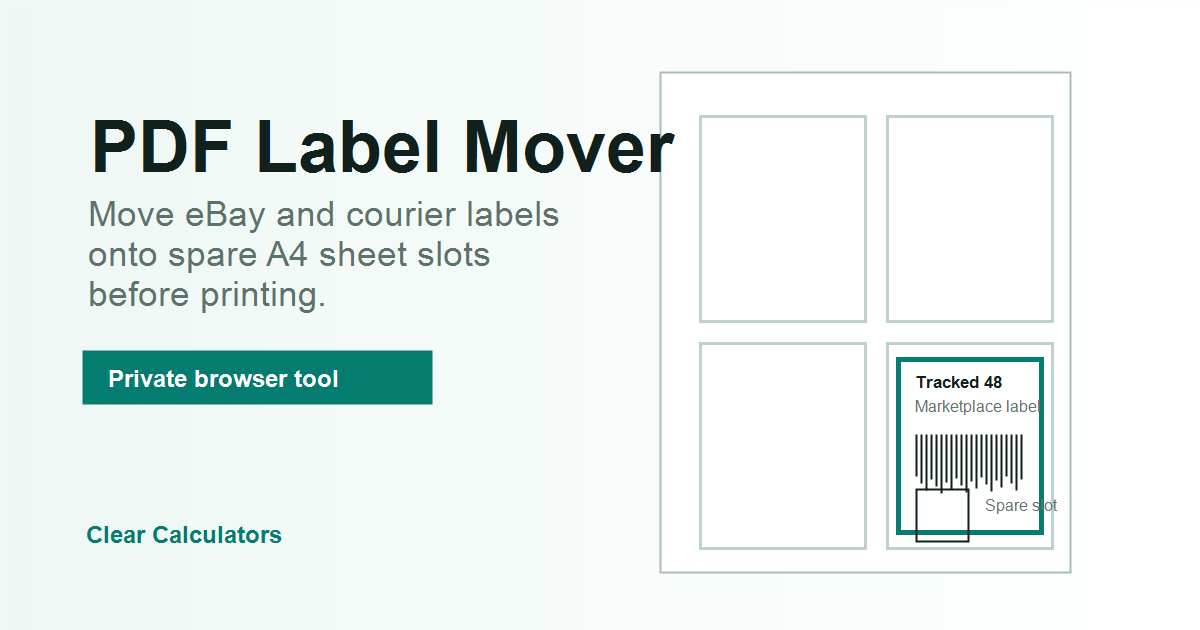
The built-in templates cover common 1, 2, 3, 4, 6, 8, 10 and 12 label layouts on A4, plus Letter-size options. For UK sellers, the 2 x 2 A4 layout is useful when you have four labels per sheet and need to print into slot 2, 3 or 4 after using the first label.
Different label suppliers use different margins and gaps. If your sheet does not line up, switch to the custom layout and enter the margins, rows, columns and gaps shown by the label supplier.
Use 4 labels on A4 for common quarter-sheet shipping labels, 2 labels on A4 for half-sheet labels, and 4 x 6 centred on A4 when you have a thermal-style label PDF but need to print it on ordinary paper.
The tight-margin and no-gap A4 templates are there for sheets where the labels sit close together. The 10 and 12 label templates are better for smaller address-style labels, not full shipping labels.
This is a layout helper, not postage software. It does not buy labels, validate addresses, change barcodes, add tracking or check courier rules. If a marketplace or courier says a label must be printed at a specific size, follow their instructions.
Use the custom sheet option if your labels use different margins or gaps. Print a test sheet on plain paper first if you are unsure.
Yes. If your eBay label fills an A4 page, try Auto detect or the eBay A4 label crop option, then check the preview before printing.
No. The guide lines are shown on the preview so you can see the label positions. The normal downloaded PDF is kept clean. The separate test sheet is the only output that intentionally prints alignment boxes.
No account is needed, and the PDF is not sent to Clear Calculators.
Check that the label is facing the right way, the barcode is fully inside the label area, and the selected slot matches the unused label on your sheet. If the preview is close to an edge, adjust the template or use a fresh sheet rather than risking a barcode that cannot be scanned.
Most label sheets need the printer set to actual size or 100% scale. Avoid fit to page unless the label supplier specifically says to use it. For expensive sheets, print the moved label on plain paper first and hold it behind the label sheet to check the position against the unused slot.